
12 KiB
The web app
Main screen
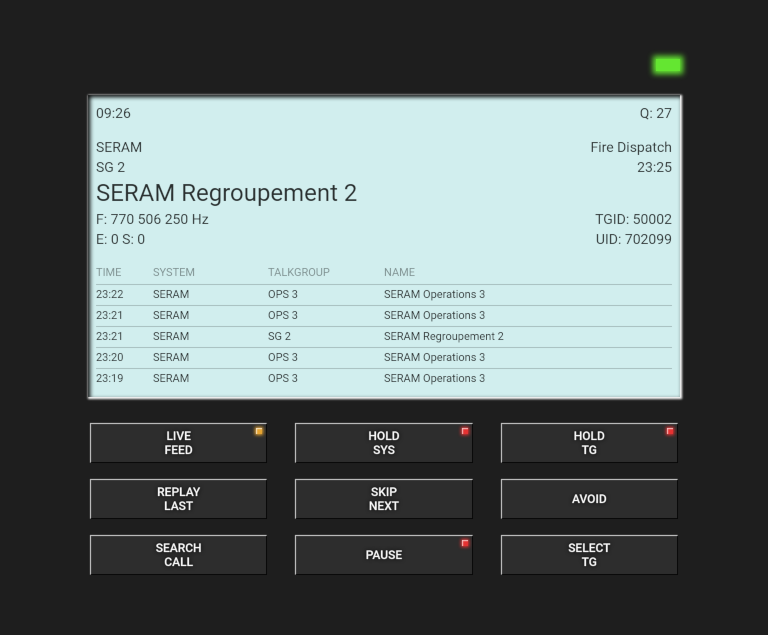
The main Rdio Scanner screen as three sections, the LED area, the display area and the controls area.
 \
\
LED Area
 \
\
The LED is illuminated when there is active audio and it blinks if audio is paused.
The color is green by default, but can be customized by the system or by the talkgroup.
Display Area
 \
\
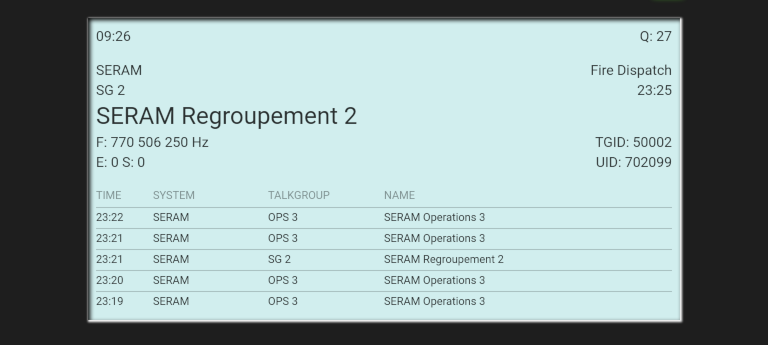
- First row
- 09:26 - Current time
- Q: 27 - Number of audio files in the listening queue
- Second row
- SERAM - System label
- Fire Dispatch - Talkgroup tag
- Third row
- SG2 - Talkgroup label
- 23:25 - The audio file recorded time
- Fourth row
- SERAM Regroupement 2 - Talkgroup full name
- Fifth row
- F: 770 506 250 Hz - Call frequency on which the audio file was recorded. The name of the audio file will be displayed instead.
- TGID: 50002 - Talkgroup ID
- Sixth row
- E: 0 - Recorder's decoding errors
- S: 0 - Recorder's spike errors
- UID: 702099 - the unit ID or alias name
- History - The last five played audio files
Note that you can double-click the display area to switch to full-screen display.
Control area
 \
\
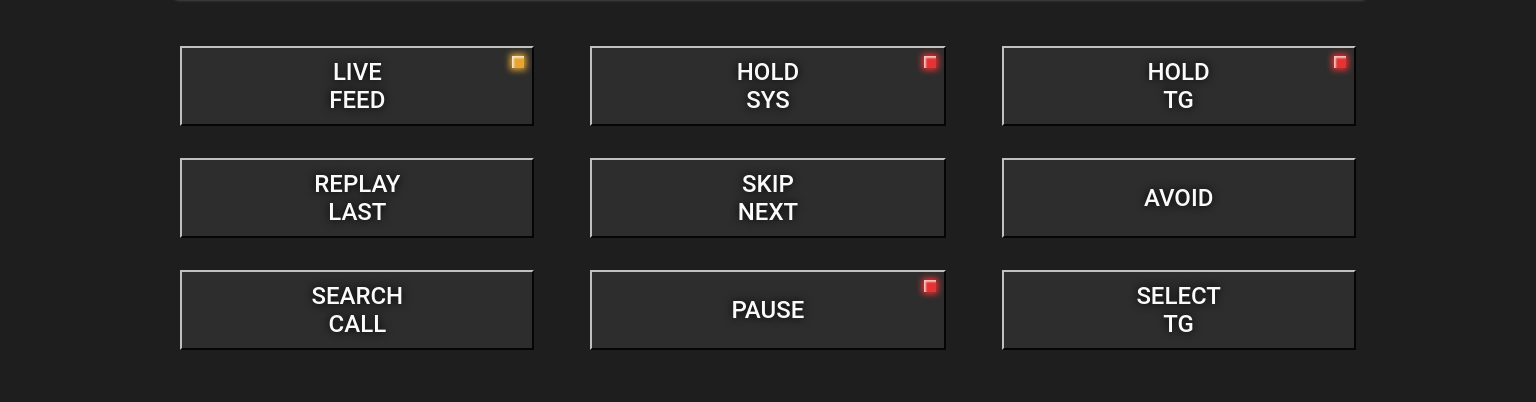
| Button | Description |
|---|---|
 |
When active, incoming audio will be played according to the active systems/talkgroups on the SELECT TG panel. The LED can also be yellow if playing audio from the archive while LIVE FEED is inactive, this is called playback mode. Disabling LIVE FEED will also stop any playing audio and will clear the listening queue. |
 |
Temporarily maintain the current system in live feed mode. |
 |
Temporarily maintain the current talkgroup in live feed mode. |
 |
Replay the current audio from the beginning or the previous one if there is none active. |
 |
Stop the audio currently playing and play the next one in the listening queue. This is useful when playing boring or encrypted sound. |
 |
Activate and deactivate the talkgroup from the current or previous audio. |
 |
Display the archived audio panel. |
 |
Stop playing queue audio. Useful if you have to answer the phone without losing what's queued up for playing. |
 |
Display the systems/talkgroups selection panel where you decide which audio you want to listen to in LIVE FEED mode, not in playback mode. |
Select panel
 \
\
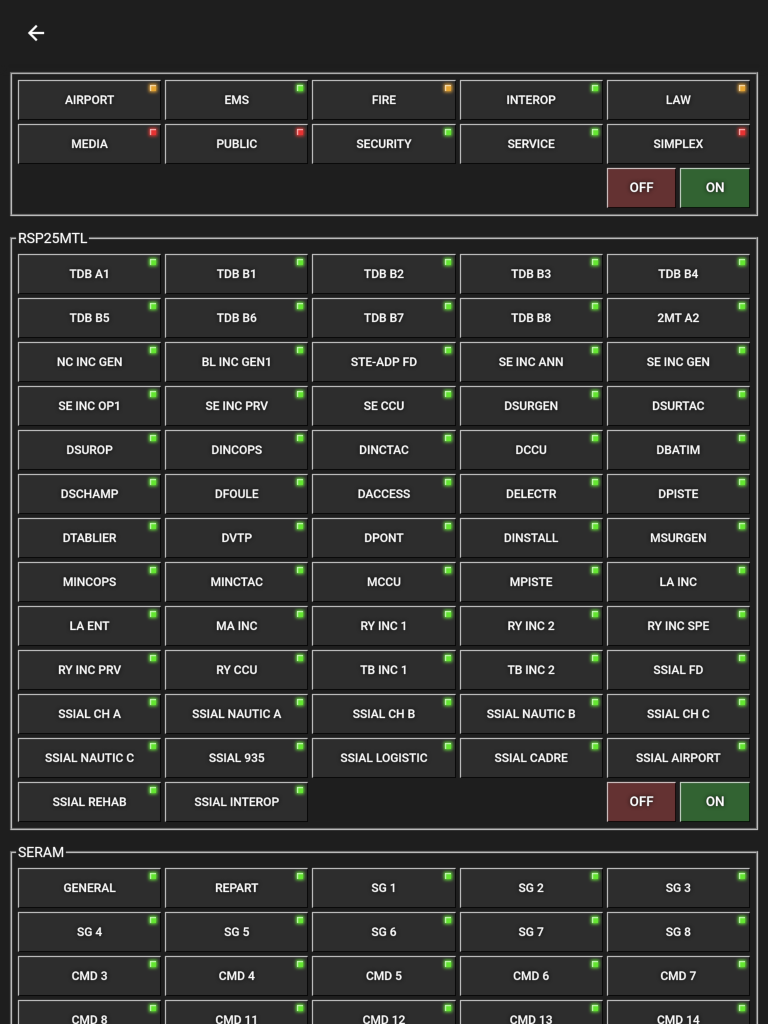
Here you select which systems/talkgroups/groups you want to listen to while in LIVE FEED mode. Note that the selection panel has no effect if you play calls from the search panel.
Groups section
 \
\
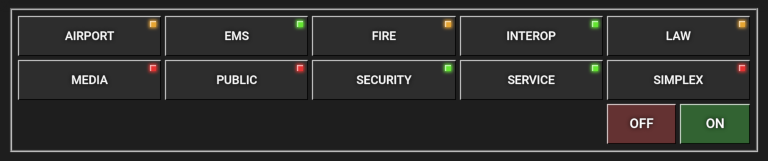
The first section concerns group selection. This section can be disabled from the configuration file, but is active by default. Each button has three states:
| Button | State |
|---|---|
 |
All talkgroups, from any systems, that correspond to this group are actives. If you press it while it is active, it will make these talkgroups inactives. |
 |
All talkgroups, from any systems, that correspond to this group are inactives. If you press it while it is inactive, it will make these talkgroups actives. |
 |
Some talkgroups, from any systems, that correspond to this group are actives and some are inactives. If you press it while it is active, it will make all these talkgroups active. |
 |
Make every groups inactives, thereby disabling all talkgroups. |
 |
Make every groups active, thereby enabling all talkgroups. |
Systems section
 \
\
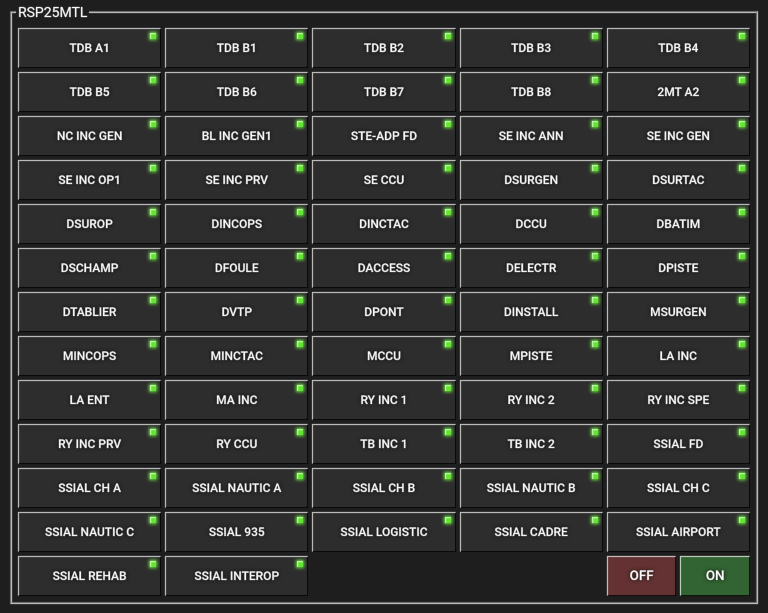
This is much like the group section, but for each system. There is also just two states for each button:
| Button | State |
|---|---|
 |
The talkgroup from this system is active. If you press it while it is active, it will make the talkgroup inactive. |
 |
The talkgroup from this system is inactive. If you press it while it is inactive, it will make the talkgroup active. |
|
Make inactive every talkgroups from this system. |
|
Make active every talkgroups from this system. |
Search panel
 \
\
List section
 \
\
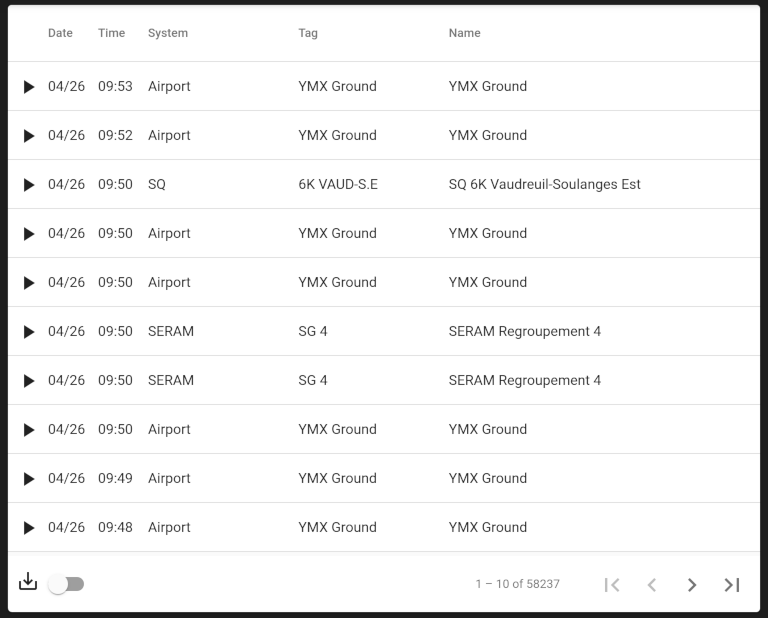
This section presents the list of archived audio files stored in the database. Depending on the LIVE FEED mode you are at, the replay function behaves differently:
| Mode | Function |
|---|---|
 |
while LIVE FEED is active, press the PLAY button to play this audio file. If another audio file is playing, it will be stopped and the one you just selected will be played instead. After playback finishes, the listening queue will resume as normal. |
|
This is the playback mode which can be activated only if LIVE FEED is inactive. Press the PLAY button to play this audio file. After playback is finishes, the next audio file from in list is played. While the audio is playing, pressing the STOP button will cancel the playback mode. |
\pagebreak{} At the bottom left of this section is the toggle switch which allows you to toggle between play buttons and download buttons. The later ones allows you to download locally the audio file.
At the bottom right of this section is the paginator to browse the whole database. This paginator is disabled while in playback mode.
Note that playback mode always requires your web app to be online. It is called like that because it plays archived audio files from the database.
Filters section
 \
\
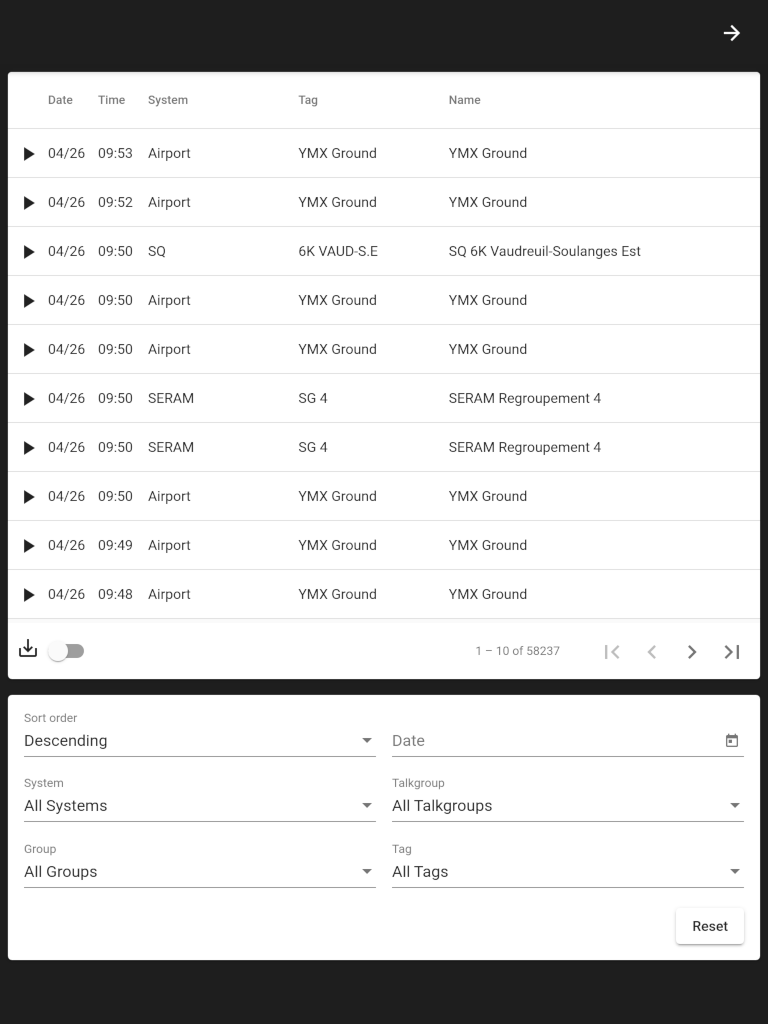
This is the section where you filter the archived audio to a specific date, system, talkgroup, groups and tags. You can also change the sort order.
There is also a small slider that changes the PLAY buttons to DOWNLOAD buttons. This allows you to download audio files individually regardless of the playback mode you use.
Note that if you change any filter while in playback mode, it will deactivate it.
\pagebreak{}